
The Windows app studies a demo on your own PC. The demo is read right there, on your machine, and nothing about the game is touched.
Install
- Download PrefireSetup.exe from Prefire's releases.
- Run it. The installer isn't code-signed yet, so Windows SmartScreen may say Windows protected your PC. Click More info, then Run anyway.
- Prefire installs for your Windows user only, without asking for administrator rights, and adds a Start menu shortcut.
It needs Windows 10 or later, and it keeps itself up to date: when a new version is out, it downloads it as it starts, installs it and opens again. To remove it, uninstall Prefire from the apps list in Windows settings. Your demos and settings stay in %LOCALAPPDATA%\Prefire until you delete that folder.
Open a demo
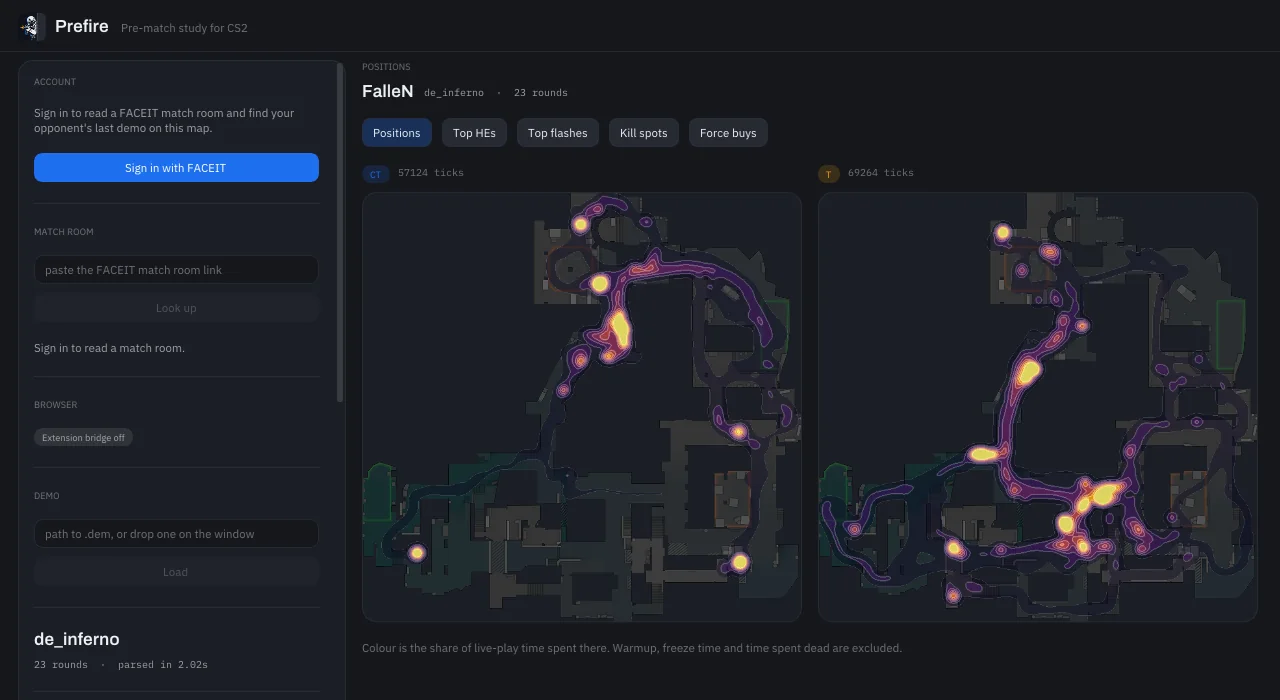
Drop a .dem file on the window, or paste its path into the Demo box in the sidebar and click Load. The match opens on its map, with its players listed in the sidebar. Pick one to study.
You don't have to sign in to open a demo.
Find an opponent from your match room
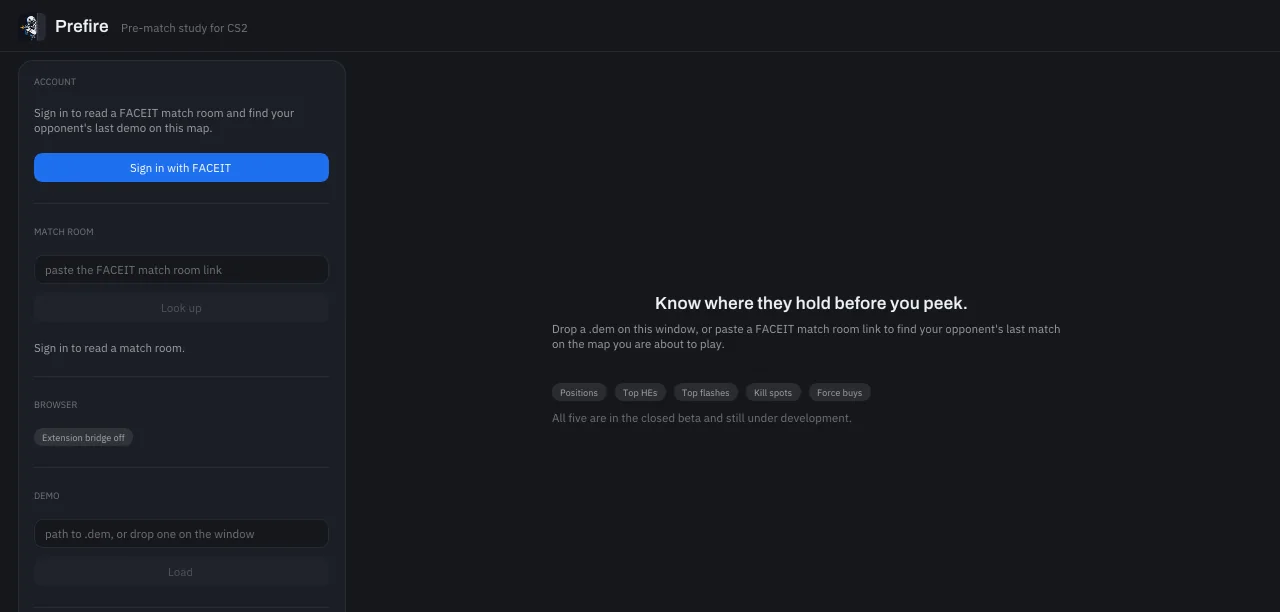
- Click Sign in with FACEIT in the sidebar and finish signing in in your browser.
- Paste your match room's link into Match room and click Look up.
- Both rosters come up, your opponents first. Pick one and Prefire opens their last match on the map you're about to play.
Studying a player this way needs an active trial or plan. If you have a trial activation code, enter it in the sidebar and click Activate.
Match found
Signed in, and with the browser extension set up, the app follows your FACEIT matches for you. When FACEIT finds you a match, it tells you from the tray: Match found while the map is being voted, then Match found on Inferno (or whichever map) with "Pick an opponent to study" once the map is picked. Click it and the rosters are on screen with your opponents first. Nothing is studied on its own: which opponent is your call.
The tray
Minimise the window and Prefire goes to the tray, by the clock, instead of the taskbar. The first time, it says so: Prefire is still running. It is in the tray, and tells you when you find a match on FACEIT. Click the icon to open it again; right-click it for Open Prefire and Quit Prefire.
While you play
In the tray, Prefire draws nothing at all, so that's where to keep it while you play.
With its window open, it keeps redrawing even when nothing on it changes. Minimise it to the tray before you queue.
Benchmarks says how that's measured, and how to check it on your own PC.